## Installation
### Requirements
- Python 3.7+
- gcc 4.9+ for PyTorch1.4.0+
(If you'll use anaconda environment at installation step2,
the following packages are installed using conda, so you can skip them.)
- cmake3 for some extensions
```sh
# For Ubuntu
$ sudo apt-get install cmake
```
- sox
```sh
# For Ubuntu
$ sudo apt-get install sox
# For CentOS
$ sudo yum install sox
```
- flac (This is not required when installing, but used in some recipes)
```sh
# For Ubuntu
$ sudo apt-get install flac
# For CentOS
$ sudo yum install flac
```
### Supported Linux distributions and other requirements
We support the following Linux distributions with CI. If you want to build your own Linux by yourself,
please also check our [CI configurations](https://github.com/espnet/espnet/tree/master/.github/workflows)
to prepare the appropriate environments.
- ubuntu18
- centos7
- debian11
- Windows10 (installation only)
- We can conduct complete experiments based on WSL-2 (Ubuntu 20.04). See the [link](https://github.com/espnet/espnet/files/10780845/Instructions.txt) and [#4909](https://github.com/espnet/espnet/discussions/4909) for details (Thanks, [@Bereket-Desbele](https://github.com/Bereket-Desbele)!)
- MacOS12 (installation only)
### Step 1) [Optional] Install Kaldi
- If you'll use ESPnet1 (under egs/): You need to compile Kaldi.
- If you'll use ESPnet2 (under egs2/): You can skip installation of Kaldi.
Click to compile Kaldi...
Related links:
- [Kaldi Github](https://github.com/kaldi-asr/kaldi)
- [Kaldi Documentation](https://kaldi-asr.org/)
- [Downloading and installing Kaldi](https://kaldi-asr.org/doc/install.html)
- [The build process (how Kaldi is compiled)](https://kaldi-asr.org/doc/build_setup.html)
- [Kaldi INSTALL](https://github.com/kaldi-asr/kaldi/blob/master/INSTALL)
Kaldi's requirements:
- OS: Ubuntu, CentOS, MacOSX, Windows, Cygwin, etc.
- GCC >= 4.7
1. Git clone Kaldi
```sh
$ cd
$ git clone https://github.com/kaldi-asr/kaldi
```
1. Install tools
```sh
$ cd /tools
$ make -j
```
1. Select BLAS library from ATLAS, OpenBLAS, or MKL
- OpenBLAS
```sh
$ cd /tools
$ ./extras/install_openblas.sh
```
- MKL (You need sudo privilege)
```sh
$ cd /tools
$ sudo ./extras/install_mkl.sh
```
- ATLAS (You need sudo privilege)
```sh
# Ubuntu
$ sudo apt-get install libatlas-base-dev
```
1. Compile Kaldi & install
```sh
$ cd /src
# [By default MKL is used] ESPnet uses only feature extractor, so you can disable CUDA
$ ./configure --use-cuda=no
# [With OpenBLAS]
# $ ./configure --openblas-root=../tools/OpenBLAS/install --use-cuda=no
# If you'll use CUDA
# ./configure --cudatk-dir=/usr/local/cuda-10.0
$ make -j clean depend; make -j
```
We also have [prebuilt Kaldi binaries](https://github.com/espnet/espnet/blob/master/ci/install_kaldi.sh).
### Step 2) Installation ESPnet

1. Git clone ESPnet
```sh
$ cd
$ git clone https://github.com/espnet/espnet
```
1. [Optional] Put compiled Kaldi under espnet/tools
If you have compiled Kaldi at Step1, put it under `tools`.
```sh
$ cd /tools
$ ln -s .
```
1. Setup Python environment
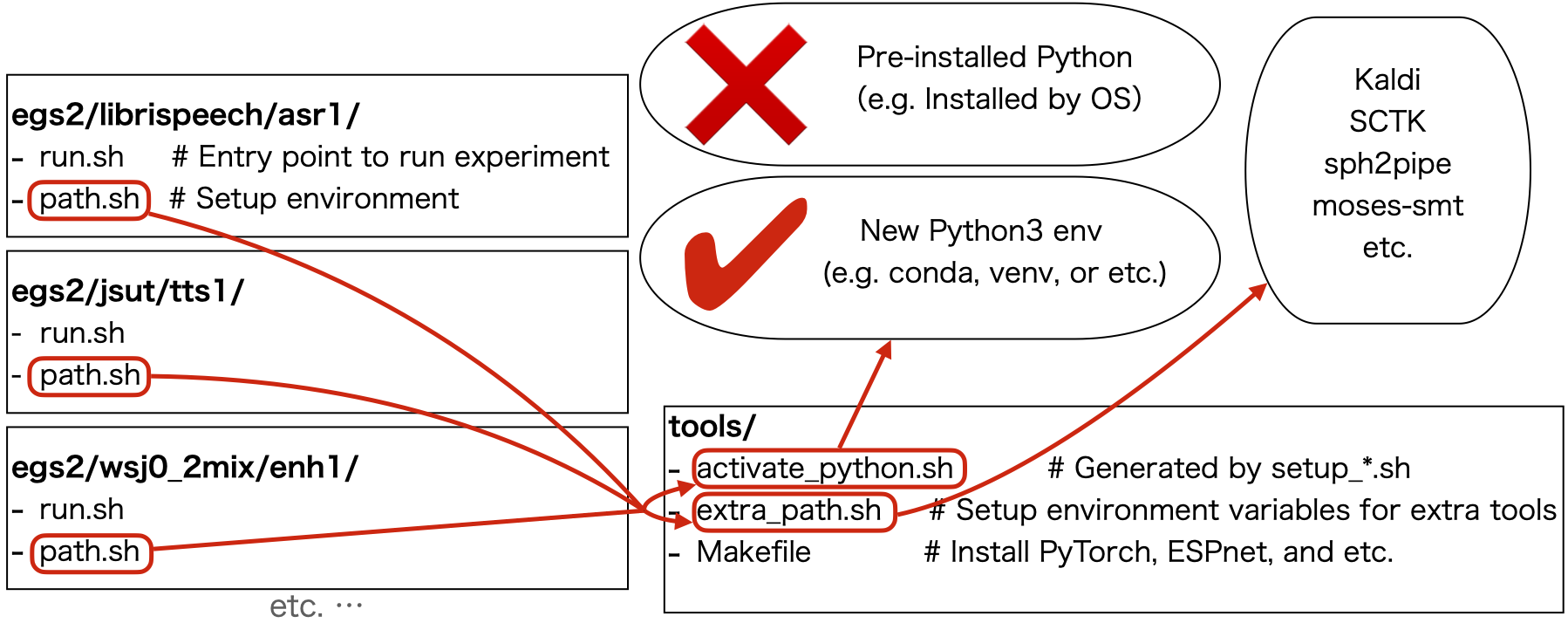
You have to create `/tools/activate_python.sh` to specify the Python interpreter used in espnet recipes.
(To understand how ESPnet specifies Python, see [path.sh](https://github.com/espnet/espnet/blob/master/egs2/TEMPLATE/asr1/path.sh) for example.)
We also have some scripts to generate `tools/activate_python.sh`.
- Option A) Setup conda environment
```sh
$ cd /tools
$ ./setup_anaconda.sh [output-dir-name|default=venv] [conda-env-name|default=root] [python-version|default=none]
# e.g.
$ ./setup_anaconda.sh miniconda espnet 3.8
```
This script tries to create a new miniconda if the output directory doesn't exist.
If you already have conda and you'll use it then,
```sh
$ cd /tools
$ CONDA_ROOT=${CONDA_EXE}/../.. # CONDA_EXE is an environment variable set by ${CONDA_ROOT}/etc/profile.d/conda.sh
$ ./setup_anaconda.sh ${CONDA_ROOT} [conda-env-name] [python-version]
# e.g.
$ ./setup_anaconda.sh ${CONDA_ROOT} espnet 3.8
```
- Option B) Setup venv from system Python
```sh
$ cd /tools
$ ./setup_venv.sh $(command -v python3)
```
- Option C) Setup system Python environment
```sh
$ cd /tools
$ ./setup_python.sh $(command -v python3)
```
- Option D) Without setting Python environment
`Option C` and `Option D` are almost same. This option might be suitable for Google colab.
```sh
$ cd /tools
$ rm -f activate_python.sh && touch activate_python.sh
```
1. Install ESPnet
```sh
$ cd /tools
$ make
```
The Makefile tries to install ESPnet and all dependencies including PyTorch.
You can also specify PyTorch version, for example:
```sh
$ cd /tools
$ make TH_VERSION=1.10.1
```
Note that the CUDA version is derived from `nvcc` command. If you'd like to specify the other CUDA version, you need to give `CUDA_VERSION`.
```sh
$ cd /tools
$ make TH_VERSION=1.10.1 CUDA_VERSION=11.3
```
If you don't have `nvcc` command, packages are installed for CPU mode by default.
If you'll turn it on manually, give `CPU_ONLY` option.
```sh
$ cd /tools
$ make CPU_ONLY=0
```
### Step 3) [Optional] Custom tool installation
Some packages used only for specific tasks, e.g. Transducer ASR, Japanese TTS, or etc. are not installed by default,
so if you meet some installation error when running these recipe, you need to install them optionally.
e.g.
- To install Warp Transducer
```sh
cd /tools
cuda_root= # e.g. = /usr/local/cuda
bach -c ". activate_python.sh; . ./setup_cuda_env.sh $cuda_root; ./installers/install_warp-transducer.sh"
```
- To install PyOpenJTalk
```sh
cd /tools
bash -c ". activate_python.sh; ./installers/install_pyopenjtalk.sh"
```
- To install a module using pip: e.g. to intstall ipython
```sh
cd /tools
bash -c ". activate_python.sh; pip install ipython"
```
### Check installation
You can check whether your installation is successfully finished by
```sh
cd /tools
bash -c ". ./activate_python.sh; . ./extra_path.sh; python3 check_install.py"
```
Note that this check is always called in the last stage of the above installation.